Text the Card ID
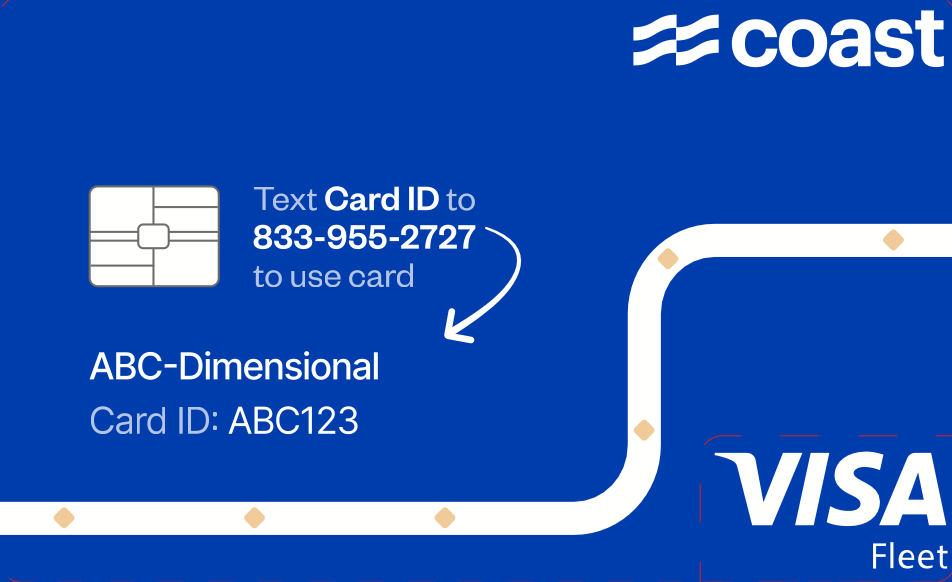
Follow the instructions on the front of your card. From your own mobile phone, text the Card ID printed on the card to 833-955-2727. Card designs may differ, but the sign-in process is the same.

SAVE THIS CONTACT
Card sign-in & text help
833-955-2727
The contact file works with iPhone and Android. Open it and confirm that you want to save the contact. If Android downloads the file, open the .vcf file from Downloads or import it in your Contacts app.
Saving the contact does not verify your Coast account. You must send Coast a text from your own mobile phone.
BEFORE YOUR FIRST PURCHASE
You must text Coast at least once from your own mobile phone to verify your account before using a Coast card for the first time. This is required even if management has already assigned you to a card in the Coast Portal.
A card must be assigned to both a person and FEDEX TRUCK NUMBER before it can be used. Management can assign it in the Coast Portal, or you can complete card sign-in by text.
SIGN IN BEFORE FUELING
Have your Coast card and vehicle information ready.
Follow the instructions on the front of your card. From your own mobile phone, text the Card ID printed on the card to 833-955-2727. Card designs may differ, but the sign-in process is the same.
Reply to Coast with the license plate or vehicle name you are asked for. The requested information depends on our fleet settings. Use the vehicle you are driving.
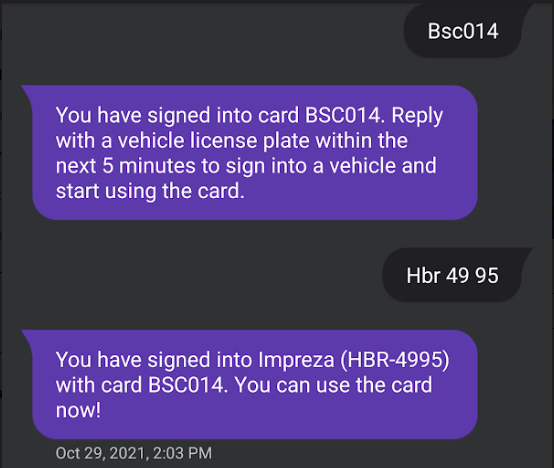
Complete Coast’s text prompts and wait for confirmation that sign-in is complete and the card is unlocked before making a purchase.
Coast will send messages to confirm purchases or explain a declined transaction. If a purchase is declined, check those messages and follow the instructions.
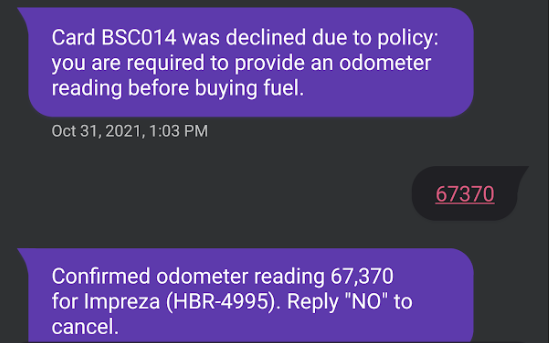
Only one person can be signed in to a card at a time. Signing in removes the previous user’s assignment to that card.
Management can view purchases and declines in the Coast Portal’s Transactions page, including fuel volume, cost per gallon, and decline reasons.
Text HELP to 833-955-2727, or call Coast support at 833-262-7801.
Setup instructions provided by Coast. Phone numbers verified against Coast’s official FAQ.